Notifications
Including tasks in your care recipients plan is essential to ensuring the quality of their days. And don’t forget to set-up notifications for the different medication tasks and activities that you have set-up for your care recipient. That will ensure all who care have peace of mind around what is taking place and how they might help.
Setting up Notifications
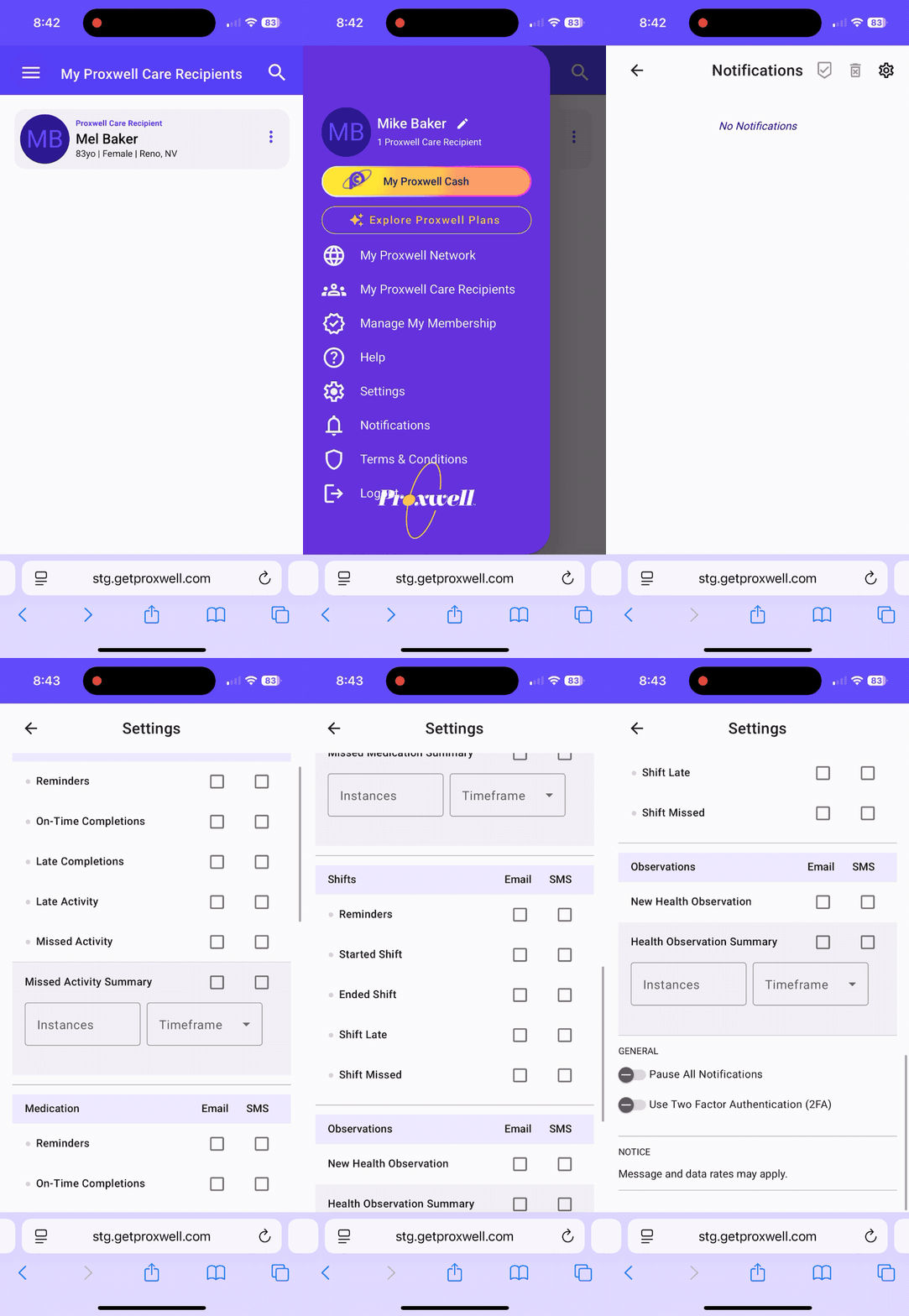
We’ve made it really simple to add notifications for everything in Proxwell. Here’s how to set it up:
Tap on the menu button in the upper left (three horizontal lines)
Tap on the ‘Notifications’ item
Once on the notification screen, tap on the ‘cog’ icon in the top right to access your notification settings
From here you can configure all of the types of notifications you’d like to receive and whether you want to be notified by email, SMS, or both
Notifications are broken out by type; Task, Activity, Medication, and Observations
You can further configure when notifications are sent, for example when tasks are completed, or a medication is missed
Summary Notifications
In addition to being notified for every instance of a task, you can also configure Summary Notifications that will trigger after a set number of occurrences and a timeframe.
Pausing Notifications
If you no longer want to receive notifications, you can disable them all with a single tap.
Scroll to the bottom of the list and use the toggle to ‘Pause All Notifications